
Hide Transactions (AR & AP)
Mistakes happen - particularly when transactions are entered and then reversed in the same period. Hide Transactions in Accounts Receivable (AR) and Accounts Payable (AP) lets you tidy up these offsetting entries while maintaining a clear audit trail.
What It Does
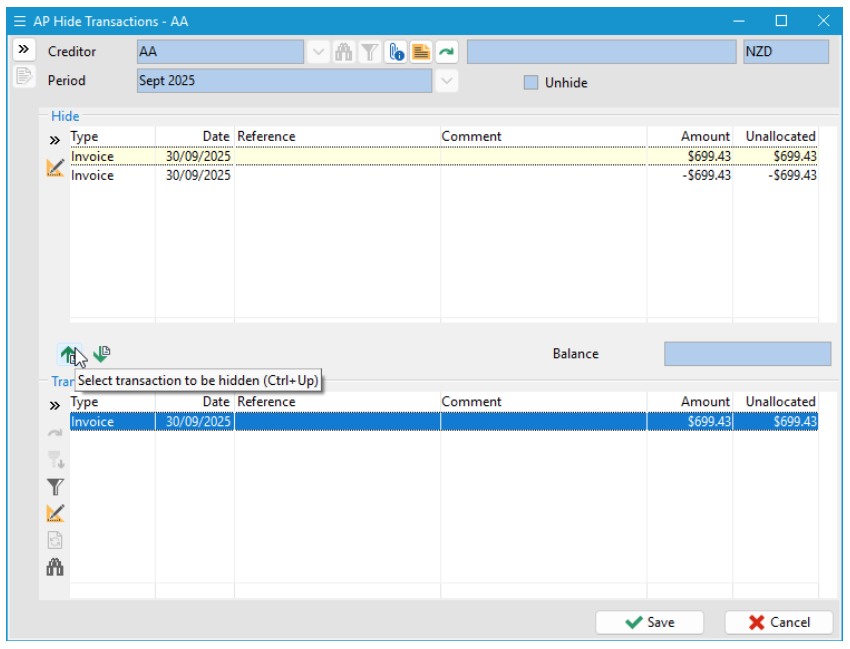
Hide Transactions allows you to hide transactions that were entered in error and contra’d in the same period. When hidden:
- Transactions are set to Inactive
- They are excluded from AR statement printing
- Customer or creditor transaction histories stay clean and easy to read
Where to Find It
- Navigator → Tasks → Accounts Receivable → Hide Transactions
- Navigator → Tasks → Accounts Payable → Hide Transactions
How It Works
1. Select the Customer or Creditor using the lookup.
2. Choose the Period (defaults to the current period and is limited to available periods).
3. Select transactions to hide by moving them to the Hide grid (Ctrl+Up or double-click).
4. Save once the Balance equals zero, ensuring only offsetting transactions are hidden.
Need to Reverse It?
Tick Unhide to view and restore previously hidden transactions.
Key Points:
- Only fully unallocated or zero-value transactions can be hidden.
- Hiding transactions fully allocates them in their period.
- Transactions remain in the system but are set to inactive.
Using Hide Transactions helps keep your AR and AP ledgers tidy, removing offsetting errors from everyday views while preserving transaction history.
« Back to articles
